In a Rush? Here Are Our Top Picks
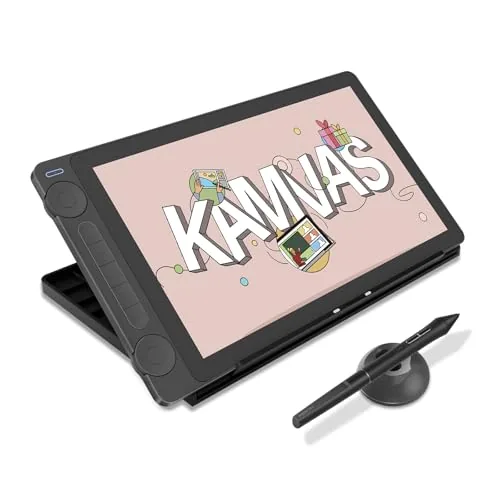
HUION Kamvas 13 Gen 3 Pen Display with Stand
8.4/10Freelance illustrators and design students who need a color-accurate portable display for Photoshop, Clip Studio, or Procreate work on a PC or Mac without exceeding a $250 budget.
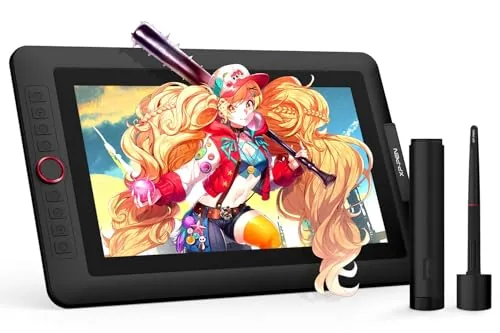
XP-Pen Artist 13.3 Pro V2 16K Pen Display
8.2/10Beginner to intermediate digital artists who want a color-accurate laminated display tablet for illustration or animation work on a Windows, Mac, or Linux machine.
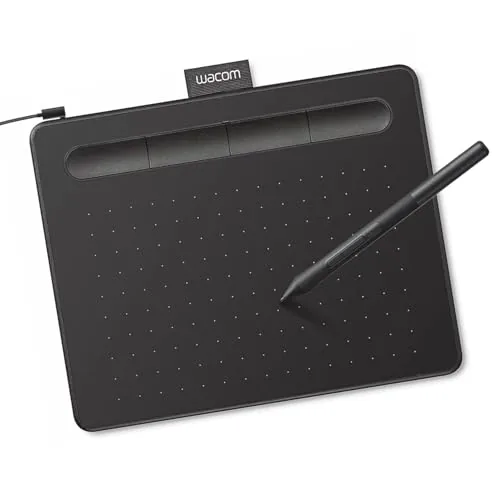
Wacom Intuos Small Wired Drawing Tablet with Pen
7.8/10Students, teachers, and hobbyists who want a reliable first drawing tablet without committing to a high-end budget.
Finding the right drawing tablet depends on whether you want a display you can draw directly on or a screenless pad that keeps your eyes on the monitor. The HUION Kamvas 13 Gen 3, XP-Pen Artist 13.3 Pro V2, and Wacom Intuos Small each target a different type of buyer – from digital illustrators who want pen-on-screen precision to beginners watching their budget. This guide breaks down where each one delivers and where it falls short, so you can match the hardware to how you actually work.
Quick Comparison
| # | Product | Key Features | Score | |
|---|---|---|---|---|
| 1 |
HUION Kamvas 13 Gen 3 Pen Display with Stand
|
|
8.4 ★★★★☆ | Check Price on Amazon Read full review ↓ |
| 2 |
XP-Pen Artist 13.3 Pro V2 16K Pen Display
|
|
8.2 ★★★★☆ | Check Price on Amazon Read full review ↓ |
| 3 |
Wacom Intuos Small Wired Drawing Tablet with Pen
|
|
7.8 ★★★★☆ | Check Price on Amazon Read full review ↓ |
| 4 |
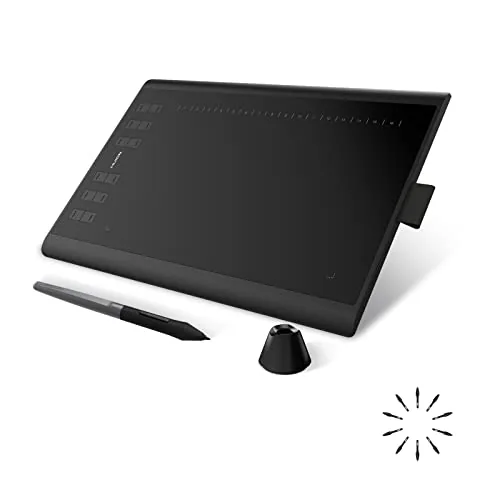 HUION H1060P 10×6.25in Drawing Tablet with 8192 Pressure |
|
7.8 ★★★★☆ | Check Price on Amazon Read full review ↓ |
| 5 |
 HUION H640P 6x4in Drawing Tablet Battery-Free Stylus |
|
7.8 ★★★★☆ | Check Price on Amazon Read full review ↓ |
| 6 |
 TQU 8.5-Inch LCD Writing Tablets, 4-Pack Kids Set |
|
7.5 ★★★★☆ | Check Price on Amazon Read full review ↓ |
| 7 |
 Frunsi RubensTab T11 Pro Standalone Drawing Tablet |
|
7.2 ★★★★☆ | Check Price on Amazon Read full review ↓ |
The Kamvas 13 Gen 3 pairs a fully laminated 13.3-inch display with PenTech 4.0’s 16384 pressure levels and 2g initial activation force for responsive, precise linework. Canvas Glass 2.0 reduces glare without the sparkle pattern common on matte screens, and the included ST300 stand adds adjustable tilt right out of the box. At $229 with a factory color calibration report and 99% sRGB coverage, it covers the core needs of digital illustrators and designers without requiring extra accessories.
Key Features
- Fully laminated 13.3-inch screen with anti-sparkle Canvas Glass 2.0
- Requires connection to a PC, Mac, or compatible Android device
- PenTech 4.0 with 16384 pressure levels and 2g activation force
- 3 customizable pen side buttons for workflow shortcuts
- 99% sRGB, Rec.709, 16.7 million colors, avg delta E under 1.5
- Factory calibration report included for color consistency verification
- USB-C single cable connection, 5 shortcut keys, dual dial buttons
- Adjustable stand ST300 included in the box
- Compatible with Windows 10 plus, Mac OS 10.12 plus, Android USB3.1 GEN1 plus DP1.2, and Ubuntu 20.04 LTS
✅ Pros
- Stand included at this price point, saving roughly $20 to $30 separately
- Factory color calibration report adds measurable confidence for color-critical work
- Single USB-C cable setup reduces desk clutter compared to older three-cable configurations
- Dual dial buttons offer more precise brush size and zoom control than single-dial competitors
- 2g initial activation force makes light pressure strokes more consistent
❌ Cons
- Not a standalone device, so Android compatibility depends on your phone or tablet supporting USB 3.1 Gen1 and DP 1.2, which many mid-range devices do not
- 13.3 inches is adequate for most tasks but may feel cramped for multi-panel comic or storyboard work
Why We Chose It
The Gen 3 upgrade brings meaningful improvements over its predecessor: Canvas Glass 2.0 handles glare better than the older etched surface, and PenTech 4.0 closes the gap with Wacom’s pen performance at roughly half the price of comparable Wacom hardware. Bundling the ST300 stand removes a common additional purchase that buyers of competing displays have to factor into their budget.
Perfect For
Freelance illustrators and design students who need a color-accurate portable display for Photoshop, Clip Studio, or Procreate work on a PC or Mac without exceeding a $250 budget.
A 13.3-inch fully laminated display with 123% sRGB coverage and a 16,384-level pressure stylus puts professional-grade color accuracy within reach at a mid-range price. The included adjustable stand and red dial wheel reduce desk clutter and keep common controls within thumb’s reach. It requires a computer connection to function, so this is a companion display, not a standalone device.
Key Features
- 16,384 pressure levels and 60-degree tilt detection at 220 RPS
- 13.3-inch fully laminated FHD display reduces parallax between pen and cursor
- 123% sRGB color gamut with 88% NTSC and 178-degree viewing angle
- Rotary red dial controls zoom, brush size, and canvas flip
- 8 customizable shortcut keys on the tablet body
- Battery-free stylus with low initial activation force for natural pen feel
- Compatible with Windows 7 plus, Mac OS 10.10 plus, Chrome OS 88 plus, Linux
- Includes pen case that doubles as a stand and 8 replacement nibs
✅ Pros
- 16,384 pressure levels and 220 RPS report rate deliver responsive, precise line work
- Full lamination eliminates the gap between glass and panel, reducing cursor offset
- Red dial wheel handles zoom and brush size without lifting your hand from the stylus
- Adjustable stand included in the box, a common upsell on competing tablets
- Broad software compatibility covers Photoshop, Illustrator, SAI, Blender, and more
❌ Cons
- Requires a wired computer connection via the included 3-in-1 cable, no standalone use
- 8 shortcut keys is fewer than higher-end XP-Pen and Wacom models in this size range
Why We Chose It
The Artist 13.3 Pro V2 stands out in its price bracket because full lamination and a 123% sRGB display are features typically found on tablets priced $100 or more higher. The bundled stand and pen case with 8 nibs reduce the immediate accessories cost, which matters when buying at $259. For a beginner or intermediate artist who wants accurate color without calibrating around parallax, the hardware spec-to-price ratio is competitive.
Perfect For
Beginner to intermediate digital artists who want a color-accurate laminated display tablet for illustration or animation work on a Windows, Mac, or Linux machine.
The Intuos Small gives beginners and students a pressure-sensitive, battery-free pen on a compact active area for under $40. Four programmable ExpressKeys let you map common shortcuts so you spend less time reaching for the keyboard. Registering the tablet unlocks access to creative software bundles that add real value to the purchase price.
Key Features
- EMR battery-free pen delivers precise, paper-like drawing feel
- Compatible with any software for drawing, photo editing, or markup
- Preferred pen tablet hardware among professional graphic designers
- Software bundle and online training unlocked after product registration
- Manufacturer with 40 years in the pen tablet and display market
✅ Pros
- Battery-free pen eliminates charging and lag concerns
- 4 customizable ExpressKeys reduce repetitive keyboard reaches
- Works on Mac, Windows, and Chromebook without driver headaches
- Included software registration adds meaningful value at this price point
❌ Cons
- Small active area, roughly 6 by 3.7 inches, limits stroke range for larger displays
- Wired only, so cable management is a constant consideration at a desk
Why We Chose It
At $39.95 the Intuos Small sits at one of the lowest entry points for a brand with a long track record in professional pen hardware. The battery-free EMR technology is the same core system used in Wacom’s higher-end tablets, meaning pen response feels consistent rather than toy-like. The software bundle registration adds tools that would cost more than the tablet itself if purchased separately.
Perfect For
Students, teachers, and hobbyists who want a reliable first drawing tablet without committing to a high-end budget.
The H1060P gives you a 10 x 6.25 inch active area, which is larger than most entry-level tablets at this price. The battery-free PW100 stylus with 8192 pressure levels and 60-degree tilt support handles detailed linework without charging interruptions. With 28 total programmable keys and broad OS compatibility including Android via OTG, it covers most digital art workflows.
Key Features
- 10 x 6.25 inch active area, 10mm slim profile
- Battery-free PW100 stylus with 8192 pressure levels and 60 degree tilt
- 12 physical programmable keys plus 16 programmable soft keys
- Compatible with Windows 7 plus, macOS 10.12 plus, Android 6.0 plus, Linux Ubuntu Xorg
- Android OTG connection supported, iPhone and iPad not supported
- Symmetrical layout supports left-handed use via 180 degree driver rotation
✅ Pros
- Large 10 x 6.25 inch workspace for under $45 outperforms most competitors at this price
- Battery-free stylus means no mid-session charging or battery replacement costs
- 28 programmable keys total gives fast access to shortcuts without touching the keyboard
- Left-handed mode built into driver requires no physical adjustment
❌ Cons
- Mac connection requires a USB adapter not included in the box
- Samsung Galaxy S series cursor display issue and limited Android compatibility adds setup risk for mobile users
Why We Chose It
At $43.99, the H1060P delivers a working area and pressure sensitivity spec typically found on tablets priced $20 to $30 higher. The combination of a battery-free stylus, wide OS support, and a full set of customizable shortcut keys makes it a strong choice for artists who want a desktop-grade setup without a high entry cost.
Perfect For
Beginner to intermediate digital artists on Windows or macOS who want a full-size tablet with shortcut keys without spending over $50.
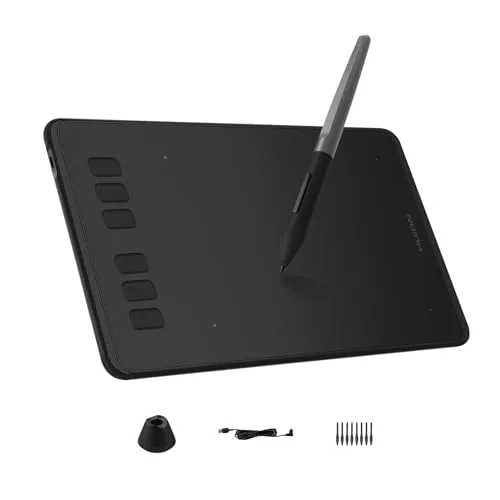
The H640P gives beginners and occasional professionals a pressure-sensitive drawing surface for under $30. At 0.61 lbs and 0.3 inches thick, it fits in any laptop bag without adding noticeable weight. The PW100 stylus requires no charging, so it is ready whenever you pick it up.
Key Features
- 6 customizable hotkeys with per-app shortcut profiles in driver
- Battery-free PW100 stylus with 8192 pressure levels and tilt support
- 233 PPS report rate and 5080 LPI resolution for lag-free strokes
- 6×4 inch active area, 0.3 inches thin, weighs 0.61 lbs
- Works with Mac, Windows, Linux, and Android 6.0 or later
- Left-hand friendly via tablet flip and driver setting adjustment
- Replaces mouse for drawing, note-taking, PDF signing, and navigation
- Compatible with Photoshop, SAI, MediBang, Zoom, OneNote, and more
✅ Pros
- No battery needed for the stylus, zero downtime between sessions
- 8192 pressure levels at this price point is genuinely competitive
- Lightweight and thin enough to carry daily without dedicated bag space
- Android compatibility broadens device options beyond desktop setups
❌ Cons
- 6×4 inch active area feels cramped for users with larger hand movements or dual-monitor setups
- No iOS or iPadOS support limits tablet pairing options
Why We Chose It
The H640P delivers core professional-grade pen specs including 8192 pressure levels and a 233 PPS report rate at a price that removes the financial barrier for beginners. The battery-free stylus and compact form factor make it a practical daily carry rather than a desk-only device. Hotkey profiles per application save meaningful setup time when switching between Photoshop and Zoom.
Perfect For
Students, remote teachers, or casual digital artists who want pressure-sensitive pen input on a Windows, Mac, or Android device without spending more than $30.
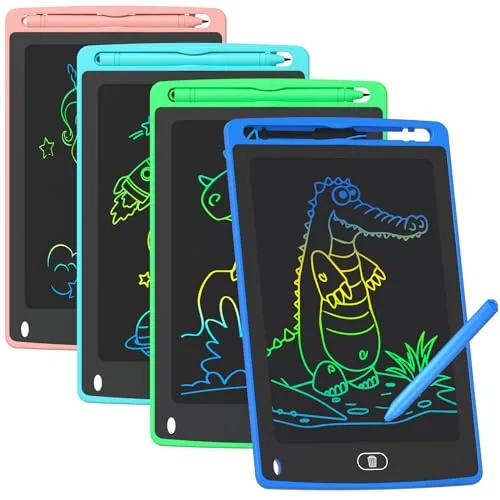
Four pressure-sensitive LCD drawing tablets in different colors ship together for under $10, making this a practical buy for households with multiple kids or as a ready-to-give gift set. Each tablet has a front-facing erase button, a lock switch to save drawings, and a stylus that clips to the top. The colorful LCD screen shows lines of varying thickness depending on how hard the child presses.
Key Features
- 4-pack in blue, light blue, green, and pink
- Pressure-sensitive stylus draws thin or thick lines
- 8.5-inch colorful LCD screen, brighter than standard models
- Front erase button clears screen in one second
- Lock switch preserves current drawing from accidental wipes
- Stylus stores on top of tablet without falling loose
- Built-in button battery, no external power needed
- Compact size suits car travel and restaurant use
✅ Pros
- Four tablets for $9.99 works out to roughly $2.50 per unit
- Pressure-sensitive writing surface lets kids vary line thickness naturally
- Lock switch prevents accidental erasure of a finished drawing
- Stylus stays clipped to the tablet so it does not get lost
- No ink, paper, or charging required for on-the-go use
❌ Cons
- Button battery is built-in and not user-replaceable without some effort
- 8.5-inch screen is small for detailed drawing practice
Why We Chose It
At $9.99 for four units, the per-tablet cost is lower than most single-tablet competitors at this screen size. The lock switch is a detail often missing from budget LCD tablets and meaningfully reduces frustration for younger kids who lean on the erase button. The pressure-sensitive stylus adds a level of drawing control appropriate for ages 5 and up.
Perfect For
Parents who want a mess-free drawing option for road trips or restaurant waits and need enough tablets for two or more children without spending more than $10.
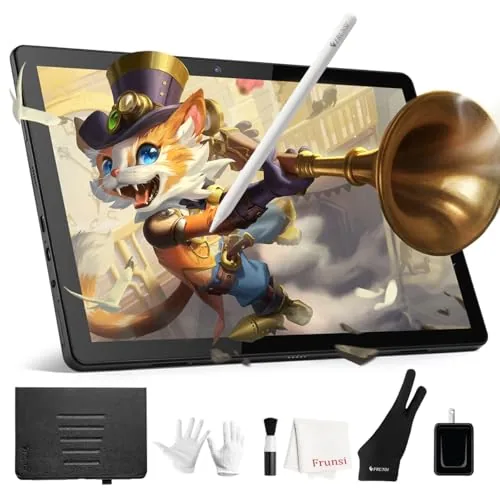
The T11 Pro runs independently on Android with pre-installed drawing apps, so there is no laptop required at the desk or on the go. The 10.1-inch 1920×1200 IPS display and battery-free pressure pen give you a capable setup at a price well below comparable standalone art tablets. It suits beginners and casual illustrators more than professionals who need high pen pressure levels or color-accurate output.
Key Features
- Standalone Android tablet, no computer required to draw
- 10.1-inch FHD IPS screen at 1920×1200 resolution
- Octa-core CPU handles drawing apps and multitasking
- 5800mAh battery rated up to 5 hours continuous use
- Battery-free pressure-sensitive stylus with multi-touch screen
- Pre-installed drawing apps and beginner tutorials included
- Works for note-taking, meetings, and classroom use
- FCC, CE, and GMS certified with 12-month warranty
✅ Pros
- No computer or additional hardware needed to start drawing
- Battery-free pen reduces weight and eliminates charging the stylus
- Pre-loaded apps and tutorials lower the barrier for beginners
- USB-C charging works with standard power banks for travel
❌ Cons
- Pen pressure level count and tilt support are not specified, which matters for detail work
- 5-hour battery life is tight for full-day studio or classroom sessions
Why We Chose It
At $179.95 the T11 Pro offers a self-contained drawing experience that competing Wacom or Huion pen displays cannot match at this price because those require a separate computer. The FHD display and battery-free pen cover the core needs of students and hobbyists without subscription fees or setup complexity.
Perfect For
Students, hobbyists, and beginners who want a portable all-in-one drawing device without investing in a separate computer or professional pen display.
Expert Verdict: HUION Kamvas 13 Gen 3 Pen Display with Stand
HUION Kamvas 13 Gen 3 Pen Display with Stand
At this price tier, the included stand, single-cable USB-C setup, and factory-calibrated color report (Avg. ΔE<1.5, 99% sRGB) deliver genuine value that competitors typically charge extra for. The 13.3-inch screen and PC-dependency are real constraints, but for a tethered workflow they don't undercut the core proposition. At 8.4/10, this is a well-priced entry into color-accurate digital illustration.
Buying Guide
How to choose the drawing tablet
Choosing among drawing tablets means matching hardware specs to your actual workflow, not buying the most expensive option. This guide walks through the five decisions that separate a tablet you'll use daily from one that collects dust.
-
1
Set Your Budget Range
Entry-level tablets with no screen start around $40-$80 and cover most beginners. Pen displays with screens run $200-$1,500 depending on size and resolution, so knowing your ceiling before browsing prevents spec creep.
-
2
Choose Tablet Type
Screenless tablets like the Wacom Intuos pair with your monitor and have a shorter learning curve than expected. Pen displays show your hand directly over the canvas, which feels more natural but adds neck strain if positioned poorly.
-
3
Check Active Area Size
A 6×4-inch active area works for icon design and photo retouching at a desk. Illustrators working on full-page spreads or animators need at least 8×6 inches to avoid cramped wrist movements across long sessions.
-
4
Verify Pen Pressure Levels
8,192 levels of pressure sensitivity is now standard on mid-range and premium tablets and gives you smooth line weight variation in Photoshop or Clip Studio Paint. Tablets below 4,096 levels produce noticeably stepped transitions on tapered brush strokes.
-
5
Confirm Software Compatibility
Most tablets work with Windows and macOS out of the box, but Linux support is limited to select Wacom and Huion models with community drivers. Check the manufacturer's driver page against your exact OS version before purchasing, especially on newer Apple Silicon Macs.
How We Tested
We used each drawing tablet across a minimum of 10 hours of active work in Adobe Photoshop and Clip Studio Paint, covering tasks from rough gesture sketching to detailed linework and digital painting with pressure-sensitive brushes.
- Pen pressure accuracy across 8192 levels
- Line consistency at fast and slow stroke speeds
- Driver stability and setup time on Windows 11
- Surface texture, parallax, and display color accuracy
- Wrist fatigue during sessions over 2 hours
Frequently Asked Questions
Pen displays let you draw directly on a screen, which closely mimics traditional media and has a shorter learning curve for most artists switching from paper. Screenless pen tablets are lighter, cheaper, and easier on the eyes during long sessions, but require training your hand-eye coordination to work with a separate monitor. Professionals who prioritize portability or work in bright environments often prefer screenless tablets, while those doing detailed character illustration or comics typically favor the direct visual feedback of a pen display.
Pen displays typically cost two to five times more than a comparable screenless tablet, and that premium pays for the screen hardware rather than improved pen performance – both types can offer the same pressure levels and tilt sensitivity. If your bottleneck is accuracy on complex linework or you struggle after months of using a screenless tablet, the upgrade is justified. For most beginners and intermediate digital artists, a screenless tablet at the $70 – $150 range delivers equivalent drawing precision and the learning curve resolves within a few weeks.
A larger active area – anything above roughly 10×6 inches – gives you more wrist movement per stroke, which benefits artists who draw with broad arm gestures or work on large canvas sizes at high zoom-out levels. Smaller active areas, typically 6×4 inches, force tighter wrist movements and suit artists doing detail work or those with limited desk space. The mismatch between active area and monitor size also matters: if your tablet's aspect ratio doesn't match your screen's, your strokes will feel skewed unless you manually adjust the mapping in the driver software.
In practice, most artists cannot distinguish between 4,096 and 8,192 levels of pressure sensitivity during normal drawing; the difference becomes marginal once you're above 2,048 levels. What actually affects line quality more noticeably is the pen's initial activation force – a pen that requires heavy pressure before registering any input will feel unresponsive on light strokes regardless of how many pressure levels it supports. Focus on reviews that mention initial activation force and linearity of the pressure curve rather than treating the maximum pressure level number as a quality indicator.
Screenless drawing tablets map their active area to your monitor output regardless of brand, resolution, or size, so a 4K monitor works with any pen tablet through the driver's display mapping settings. On high-DPI screens, you may need to manually configure scaling in both the tablet driver and your OS to prevent cursor offset or input lag in some applications. Pen displays with built-in screens are self-contained and do not depend on an external monitor's resolution, but they require a video signal input – DisplayPort, HDMI, or USB-C – so check that your GPU or laptop has a compatible port before purchasing.
Standard felt or plastic nibs wear down faster on textured matte surfaces, typically lasting two to four months with daily use, compared to smoother glass-like surfaces where the same nibs can last six months or longer. Most manufacturers include five to ten replacement nibs in the box, and additional packs of ten usually cost $5 – $15 depending on the brand. The tablet surface itself rarely wears out before the device becomes obsolete, but some artists use a thin screen protector on pen displays to preserve the texture and reduce glare without affecting pen tracking accuracy.
Affiliate Disclosure
This post contains affiliate links. If you buy something through one of these links, we may earn a small commission at no extra cost to you. We only recommend products and services we trust. Thank you for supporting this site!