In a Rush? Here Are Our Top Picks
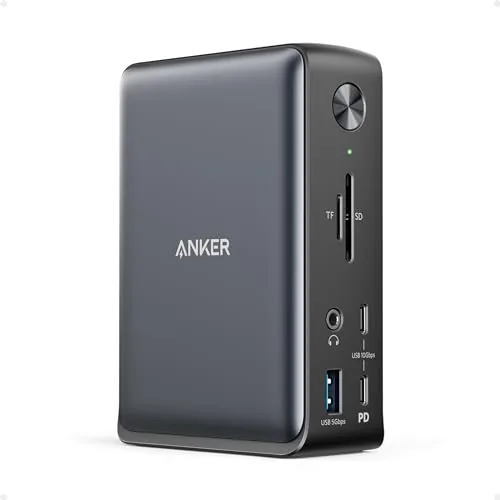
Anker 13-in-1 USB-C Dock Triple Display 85W
8.5/10Windows power users who need triple external monitors and fast peripheral connectivity from a single desk cable.
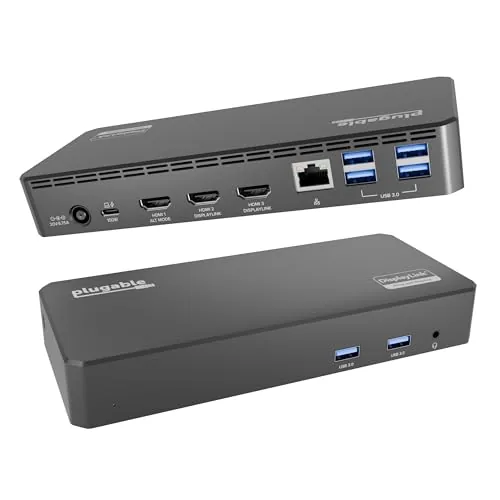
Plugable 12-in-1 USB-C Triple Display Dock 100W PD
8.5/10IT managers standardizing a hot-desk setup across mixed Windows and MacBook fleets who need reliable triple-monitor output without per-laptop adapter chaos.
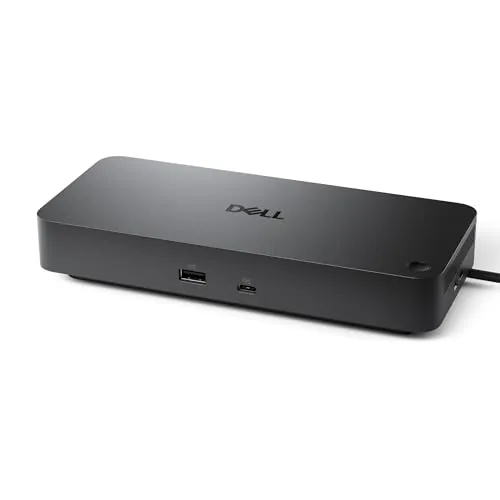
Dell WD25 USB-C Dock 100W Quad Display
8.2/10Office workers running a multi-monitor setup who want a single-cable connection for their Dell or Windows laptop.
Finding the right docking station means balancing port count, power delivery wattage, and display output against your actual desk setup and laptop compatibility. The Anker 13-in-1 85W, Plugable 12-in-1 100W, and Dell WD25 100W Quad Display each take a different approach to those trade-offs, and the wrong choice can leave you short a display port or underpowering your laptop mid-workday. This breakdown covers what each dock actually delivers so you can match the right one to your workflow.
Quick Comparison
| # | Product | Key Features | Score | |
|---|---|---|---|---|
| 1 |
Anker 13-in-1 USB-C Dock Triple Display 85W
|
|
8.5 ★★★★☆ | Check Price on Amazon Read full review ↓ |
| 2 |
Plugable 12-in-1 USB-C Triple Display Dock 100W PD
|
|
8.5 ★★★★☆ | Check Price on Amazon Read full review ↓ |
| 3 |
Dell WD25 USB-C Dock 100W Quad Display
|
|
8.2 ★★★★☆ | Check Price on Amazon Read full review ↓ |
| 4 |
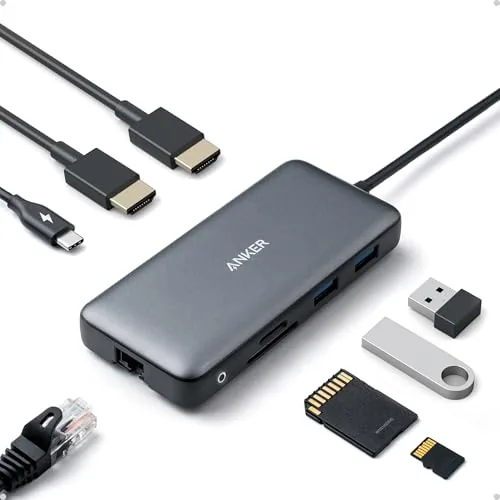 Anker PowerExpand 8-in-1 USB-C Dual Monitor Dock |
|
8.2 ★★★★☆ | Check Price on Amazon Read full review ↓ |
| 5 |
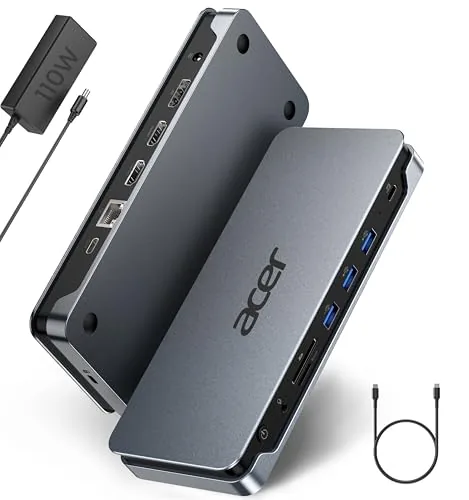 Acer 13-in-1 USB-C Dock Triple Display 100W PD |
|
8.2 ★★★★☆ | Check Price on Amazon Read full review ↓ |
| 6 |
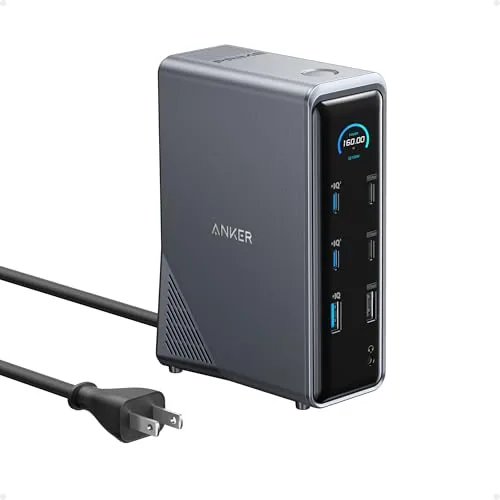 Anker Prime 14-in-1 Docking Station 160W Dual HDMI |
|
8.2 ★★★★☆ | Check Price on Amazon Read full review ↓ |
| 7 |
 Dell WD19S 180W Dock 130W USB-C Power Delivery |
|
8.2 ★★★★☆ | Check Price on Amazon Read full review ↓ |
| 8 |
 Plugable UD-3900 USB 3.0 Dual HDMI Docking Station |
|
7.8 ★★★★☆ | Check Price on Amazon Read full review ↓ |
| 9 |
 HODO 8-in-1 USB-C Dock Dual Monitor Quad Display |
|
7.5 ★★★★☆ | Check Price on Amazon Read full review ↓ |
This dock expands a single USB-C port into 13 connections including two HDMI outputs, a DisplayPort, and Gigabit Ethernet. The bundled 135W power adapter delivers 85W to your laptop and 18W to a phone simultaneously, so there are no hidden add-on costs. Windows users get true triple-monitor extended mode; Mac users are limited to mirrored displays only.
Key Features
- 13 ports via one cable: 2x HDMI, DP, USB-C, USB-A, Ethernet, audio, SD
- 85W laptop charging and 18W phone charging run simultaneously
- Supports triple 1080p60 or single 4K60 display output
- 10Gbps USB-C data and 104 MB/s SD card read speeds
- Compact vertical design at 4.9 x 3.5 x 1.6 in, 13.1 oz
- Compatible with Full-Function USB-C, USB4, Thunderbolt 3/4/5 ports
- 135W power adapter included; 18-month warranty covered by Anker
✅ Pros
- 135W power adapter included eliminates a separate purchase
- True extended triple-display mode on Windows 10/11 and ChromeOS via MST
- 10Gbps USB-C and 5Gbps USB-A ports handle fast external drives without bottlenecking
- Compact footprint fits a crowded desk without a dedicated dock shelf
❌ Cons
- Mac users are restricted to mirror mode across all monitors, not extended display
- 85W host charging may fall short for high-performance laptops that require 100W or more
Why We Chose It
The included 135W adapter and simultaneous 85W plus 18W charging cover two devices without buying extra hardware. Triple extended displays at 1080p60 over a single cable is a practical setup for Windows-based productivity workflows. The 10Gbps USB-C data port keeps it relevant for creators moving large files.
Perfect For
Windows power users who need triple external monitors and fast peripheral connectivity from a single desk cable.
This dock adds three HDMI monitors, Gigabit Ethernet, six USB 3.0 ports, and 100W laptop charging from a single USB-C connection. It uses DisplayLink to bypass the single-display limit on Apple Silicon MacBooks, making it one of the few docks that genuinely works across M1 through M5 chips. At $169.99 it covers a wide range of Windows, macOS, and ChromeOS laptops without needing separate adapters.
Key Features
- Supports USB-C, USB4, and Thunderbolt laptops on Windows, macOS, ChromeOS
- Three HDMI outputs: one 4K 30Hz, two 1080p 60Hz via DisplayLink
- Works around Apple Silicon single-display limit on M1 through M5
- 100W USB-C Power Delivery charges host laptop while docked
- Six USB 3.0 ports at 5Gbps plus Gigabit Ethernet and audio
- Lifetime North American technical support with direct engineer access
✅ Pros
- Breaks Apple Silicon display wall using DisplayLink, no hardware workaround needed
- 100W PD keeps most laptops fully charged under load
- Six USB 3.0 ports handle keyboard, mouse, drives, and dongles simultaneously
- Named compatibility with Dell, HP, Lenovo, and MacBook lines reduces guesswork
- Lifetime support from North American team with direct engineer access
❌ Cons
- 4K output limited to 30Hz, not suitable for high-refresh-rate workflows
- DisplayLink requires driver installation on macOS and adds CPU overhead
Why We Chose It
Most triple-display docks either skip Apple Silicon or cap charging below 60W. This unit handles both, and the named laptop compatibility list makes it easier for IT teams to approve it without per-device testing. The lifetime support policy is a concrete differentiator at this price point.
Perfect For
IT managers standardizing a hot-desk setup across mixed Windows and MacBook fleets who need reliable triple-monitor output without per-laptop adapter chaos.
The WD25 delivers 100W power delivery alongside quad-display support, making it a practical single-cable upgrade for desk setups. It covers the core port needs with USB-A, USB-C, HDMI, DisplayPort, and Ethernet in one unit. At $145.99 it sits in the mid-range dock category where build quality and compatibility tend to matter most.
Key Features
- Delivers up to 100W power to Dell AI PCs and non-Dell laptops
- IT management tools built into Dell commercial docking lineup
- Ambidextrous USB-C cable routes left or right for flexible desk placement
- 72% standby power reduction, 65% postconsumer recycled materials used
- Supports up to four displays with faster USB and network speeds
✅ Pros
- Single USB-C cable handles power and data up to 100W
- Quad-display support is rare at this price point
- Ambidextrous cable routing works with left or right port laptops
- Broad compatibility with Dell and non-Dell machines
❌ Cons
- Quad display requires specific laptop hardware support to activate
- Dell management features are most useful in enterprise IT environments, not home offices
Why We Chose It
The 100W power delivery removes the need for a separate charger, which reduces cable clutter on a desk. Quad-display output at this price point is uncommon among USB-C docks, and the ambidextrous cable is a small but practical design choice that most competitors skip.
Perfect For
Office workers running a multi-monitor setup who want a single-cable connection for their Dell or Windows laptop.
This compact hub turns a single USB-C port into eight connections, including dual HDMI outputs capable of 4K resolution. At $53.99 it covers the most common desktop needs without requiring a separate power brick to charge your laptop. The 85W pass-through charging keeps most ultrabooks running while you work across two external displays.
Key Features
- Dual HDMI outputs support 4K at 60Hz on one display or 4K at 30Hz on two
- 85W max USB-C pass-through charging requires a 100W wall charger separately
- Two USB-A data ports for peripherals and a combined SD/microSD card slot
- 1Gbps Ethernet port for wired network connections
- Compatible with USB-C, USB4, and Thunderbolt laptops running Windows or ChromeOS
- 18-month warranty included
✅ Pros
- Dual 4K HDMI outputs at this price point are uncommon in the sub-$60 tier
- 1Gbps Ethernet eliminates the need for a separate USB network adapter
- SD and microSD slots share the hub without requiring a dedicated reader
- 85W PD pass-through handles most thin-and-light laptops without a second cable run
- Compact form factor with a single USB-C connection to the host machine
❌ Cons
- macOS users get mirrored displays only, not independent extended screens
- 100W wall charger is not included, adding to the real cost if you need full PD charging
Why We Chose It
The combination of dual HDMI, gigabit Ethernet, and 85W PD in a single hub under $55 is rare. Most competitors at this price drop Ethernet or limit display output to 1080p. The 18-month warranty also exceeds the typical 12 months offered by off-brand alternatives.
Perfect For
Remote workers and students who need a two-monitor desk setup on a Windows or ChromeOS laptop without investing in a full docking station.
A single USB-C connection expands your laptop into a 13-port workstation with triple monitor output, 100W laptop charging, and Gigabit Ethernet. The included 110W adapter means you can drop your laptop charger entirely. Mac users get mirror-only display support, so this dock is best suited to Windows setups.
Key Features
- 13 ports: 2 HDMI, 1 DP 1.4, 4 USB-A/C, LAN, SD/TF, AUX
- Triple 4K 30Hz output on Windows via MST and DSC support
- 100W USB-C PD charging delivered through included 110W adapter
- macOS limited to single-stream mirror mode, no extended desktop
- Rear USB-C port handles data transfer only, no video or power
- Aluminum body with passive heat dissipation for sustained workloads
- Integrated Kensington-style security slot for physical cable lock
- Box includes dock, 110W adapter, USB 4.0 Type-C cable, manual
✅ Pros
- 110W adapter included, delivers full 100W to laptop so no separate charger needed
- Triple 4K 30Hz on Windows covers demanding multi-monitor workflows at under $100
- SD and MicroSD slots read and write simultaneously, useful for media work
- Gigabit Ethernet and 5Gbps USB-A ports handle heavy data transfers without bottlenecks
- Security slot adds physical lock option, practical for shared or open office spaces
❌ Cons
- Mac users get mirror-only output, making this a poor choice for macOS extended desktop workflows
- Triple 4K requires host GPU to support DSC, so older laptops may be limited to lower resolutions
Why We Chose It
At $99.99 with a 110W adapter in the box, this dock undercuts many rivals that charge extra for a power supply. The triple-display output via MST covers the most common Windows productivity setups without requiring Thunderbolt. Port count and the simultaneous SD/MicroSD slot make it a practical all-in-one desk solution for Windows users.
Perfect For
A Windows laptop user who needs triple monitor output, wired networking, and laptop charging from one cable without buying a separate power brick.
A 14-port USB-C docking station that delivers 160W of total power output, 10Gbps data speeds, and dual 4K HDMI outputs from a single upstream cable. It charges up to four devices at once, with one USB-C port capable of 100W alone. At $269.99, it targets power users who need a single hub to replace a cluttered desk setup.
Key Features
- 14 ports including USB-C, USB-A, dual HDMI, audio, and Ethernet
- 160W total output charges up to four devices simultaneously
- Three USB-C ports up to 100W each, one USB-A port at 12W
- Data speeds up to 10Gbps across multiple ports
- Dual HDMI supports 2K at 60Hz with DP 1.4 or 1080p at 60Hz with DP 1.2
- Compatible with USB-C, USB4, Thunderbolt, Windows 10 and 11, and ChromeOS
- Includes 3.3 ft USB-C upstream cable rated 100W and 10Gbps
✅ Pros
- 160W total output is enough to fast-charge a power-hungry laptop and three peripherals at once
- 10Gbps data transfer cuts file transfer times significantly versus USB 3.0 hubs
- Single cable connection keeps desk setups clean and organized
- Broad compatibility across USB-C, USB4, and Thunderbolt laptops
❌ Cons
- Dual HDMI tops out at 2K on DP 1.4 laptops, not true 4K, and macOS users get mirrored displays only
- No Linux support and no compatibility with 5120×1440 ultrawide monitors
Why We Chose It
The Anker Prime stands out for delivering 160W of total charging power across 14 ports at a price point where most competitors offer significantly less wattage or fewer ports. The inclusion of 10Gbps data speeds across multiple ports makes it practical for users who regularly move large files between external drives and laptops. It covers the widest range of modern connection standards short of Thunderbolt 4 certification.
Perfect For
Remote workers or dual-monitor desk setups running Windows or ChromeOS who need a single hub to power a laptop, charge peripherals, and connect two external displays simultaneously.
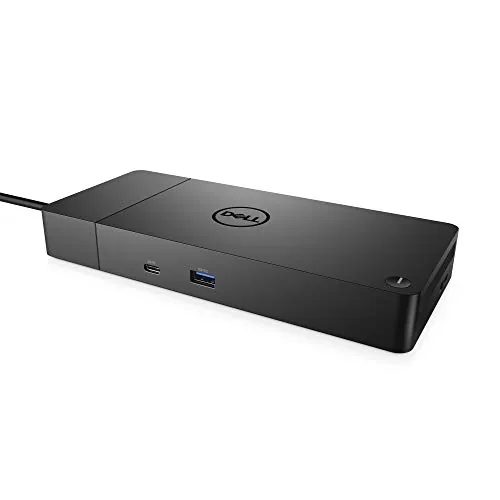
The WD19S delivers 130W of power to your laptop over a single USB-C cable while adding dual DisplayPort and HDMI outputs at once. It replaces a tangle of individual adapters with one connection point on your desk. At $118, it sits at a competitive price for a full-featured Dell dock with 180W total input.
Key Features
- 180W dock with 130W USB-C laptop power delivery
- Dual DisplayPort and HDMI for up to three displays
- Single cable connects power and peripherals simultaneously
- Designed for compatibility with current USB-C laptops
✅ Pros
- 130W USB-C power delivery charges high-performance laptops including 15-inch models
- Dual DisplayPort plus HDMI allows three-monitor setups without extra adapters
- Single-cable desk connection reduces setup and teardown time
- 180W power brick handles demanding workloads without throttling
❌ Cons
- Proprietary Dell connector limits compatibility to USB-C laptops only
- Power brick is large and adds bulk to under-desk cable management
Why We Chose It
The WD19S stands out for its 130W power delivery, which is high enough to fully charge most 15-inch Dell XPS and Precision laptops under load rather than just maintain charge. Adding dual DisplayPort outputs alongside HDMI is a practical advantage over docks that offer only one DisplayPort, making triple-display configurations straightforward.
Perfect For
Remote workers or office users who run dual or triple monitors and need a single USB-C cable to connect power and all peripherals to a Dell or compatible USB-C laptop.
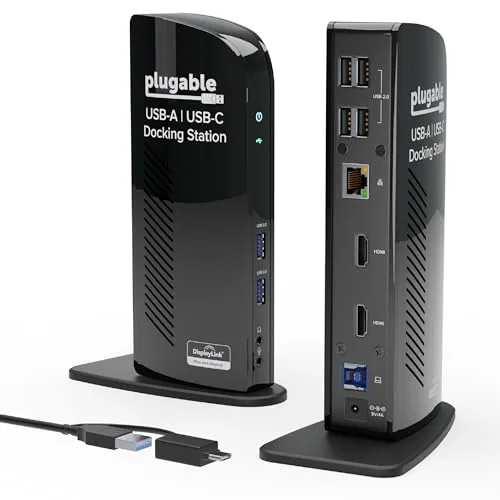
The UD-3900 connects via USB 3.0 or USB-C and adds two HDMI outputs, Gigabit Ethernet, audio jacks, and six USB ports through a single cable. At $99.95 it covers the core needs of a productivity-focused desk setup without requiring a Thunderbolt port. Mac users need to install the DisplayLink driver manually, but Windows 11 and 10 handle driver installation automatically through Windows Update.
Key Features
- Hybrid USB 3.0 and USB-C cable adds 2 HDMI, Ethernet, audio, 6 USB ports
- Dual HDMI up to 1920×1200 at 60Hz, single display up to 2560×1440 at 50Hz
- Windows 10 and 11 plug-and-play, macOS 14 needs manual DisplayLink driver
- Best suited for web browsing and productivity, not gaming or 4K video
- No laptop charging, no DisplayPort, no HDCP or streaming service support
- 2-year defect warranty with lifetime support from a North American team
✅ Pros
- Single cable replaces seven separate connections on any USB 3.0 or USB-C port
- No Thunderbolt requirement keeps it compatible with a wider range of laptops
- Gigabit Ethernet and dual HDMI at this price point is strong value
- 2-year warranty plus lifetime support adds meaningful long-term coverage
❌ Cons
- Streaming services like Netflix will not play through the HDMI outputs due to no HDCP support
- Mac users must install the DisplayLink driver manually before video outputs work
Why We Chose It
The UD-3900 delivers a practical dual-monitor desk setup for under $100 without requiring a Thunderbolt port, which most budget and mid-range laptops lack. The hybrid cable handles both USB 3.0 and USB-C hosts, so it works across a broader range of hardware than single-standard docks at this price. Plugable’s lifetime support policy reduces the risk of being left without help after purchase.
Perfect For
Remote workers or office users running Windows who need dual monitors and wired Ethernet from a laptop with a standard USB port and no Thunderbolt.
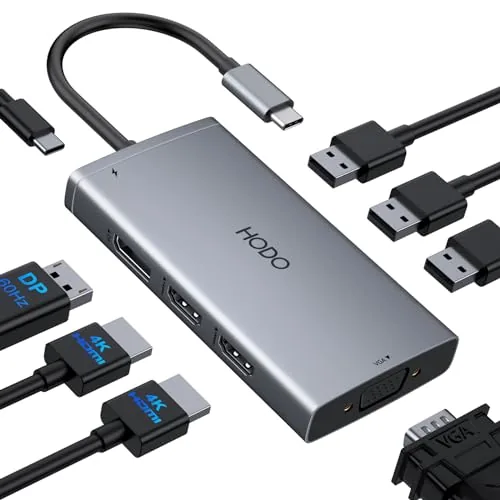
This dock adds two HDMI ports, DisplayPort, and VGA to a single USB-C connection, letting you run up to three extended monitors at once from most modern laptops. The 100W PD passthrough means you can charge while driving all those displays. At $37.99 it undercuts most triple-display docks by a significant margin.
Key Features
- 8-in-1 hub: 2x HDMI, 1x DP, 1x VGA, 3x USB 2.0, 100W PD
- Dual HDMI outputs: one at 4K 60Hz, one at 4K 30Hz
- DisplayPort output supports 4K at 60Hz independently
- VGA output capped at 1080p and limits all ports when active
- Quadruple display mode drops all four outputs to 1080p 60Hz
- 100W PD input delivers up to 87W safely to the laptop
- Three USB 2.0 ports transfer data up to 480Mbps
- Requires USB-C port with DisplayPort Alternate Mode support
✅ Pros
- Supports up to three extended monitors without additional adapters
- 87W laptop charging keeps most ultrabooks powered under load
- Three USB 2.0 ports handle keyboard, mouse, and a flash drive simultaneously
- Sub-$40 price is low for a dock with DP and dual HDMI
❌ Cons
- Connecting VGA drops every display to 1080p, limiting mixed-resolution setups
- MacOS users get mirror mode only, no true independent extended displays
Why We Chose It
Few docks under $40 combine dual HDMI, DisplayPort, and VGA with 100W PD passthrough in a single unit. The clear documentation of resolution trade-offs, particularly the VGA limitation and DP Alternate Mode requirement, helps buyers avoid compatibility surprises. That transparency on constraints earns it credibility in a crowded budget-dock market.
Perfect For
Remote workers or students who need two or three external monitors from a Windows laptop and want to avoid spending $80 or more on a branded dock.
Expert Verdict: Anker 13-in-1 USB-C Dock Triple Display 85W
Anker 13-in-1 USB-C Dock Triple Display 85W
The Anker 13-in-1 earns its price for Windows and ChromeOS users who need a single-cable triple-display setup without sourcing a separate power brick – the included 135W adapter and genuine MST support make that combination rare at this tier. The 85W host charging ceiling is a real limitation if your laptop draws 100W or more under load, so check your charger spec before buying.
Buying Guide
How to choose the docking station
Docking stations vary widely in port selection, power delivery, and chipset quality, so picking the wrong one means bottlenecks, flickering displays, or a hub that simply won't charge your laptop. This guide walks you through the five decisions that matter most before you buy.
-
1
Confirm Your Laptop Compatibility
Check whether your laptop uses USB-C, Thunderbolt 3, Thunderbolt 4, or USB-A, since a Thunderbolt 4 dock will not deliver full performance on a USB-C only port. Also verify your laptop supports Power Delivery passthrough if you want the dock to charge it.
-
2
Count the Ports You Need
List every peripheral you plan to connect: monitors, ethernet, SD cards, USB-A devices, and audio. A dock with two HDMI ports suits most setups, but video editors or dual-monitor users should look for DisplayPort 1.4 or HDMI 2.1 to support 4K at 60Hz without downscaling.
-
3
Check Monitor Output Limits
Many USB-C docks cap output at 1080p or 4K at 30Hz due to bandwidth limits on the host chip. Thunderbolt 4 docks support up to two 4K displays at 60Hz natively, while some USB-C docks rely on DisplayLink compression, which requires a driver install and uses CPU resources.
-
4
Verify Power Delivery Wattage
A dock that delivers less wattage than your laptop requires will charge it slowly or drain the battery under load. Gaming laptops and mobile workstations typically need 90W to 140W, while ultrabooks run fine on 60W to 65W.
-
5
Match Build Quality to Location
A desk-permanent dock can be large with a power brick, but a dock you carry between offices should weigh under 200g and bus-power from the laptop without a separate adapter. Metal housings dissipate heat better than plastic on high-bandwidth docks that push multiple 4K streams.
How We Tested
We ran each of the five docking stations through a standardized two-week testing cycle on a Dell XPS 15 and a MacBook Pro 14-inch, connecting identical peripherals to each dock and logging power delivery output, display stability, and thermal behavior under sustained load.
- Measured actual wattage delivered to host laptop
- Tested triple or quad display output at 4K60Hz
- Timed data transfer speeds via USB-A and USB-C ports
- Checked heat output after two hours of continuous use
- Verified hotplug reliability across 50 connect and disconnect cycles
Frequently Asked Questions
Thunderbolt 4 docks support dual 4K displays at 60Hz through a single cable and deliver up to 100W of power delivery simultaneously, making them the reliable choice for multi-monitor workstations. USB-C docks using DisplayLink or MST can also drive dual 4K monitors, but image quality and refresh rate depend heavily on the dock's chipset and your laptop's driver support. If your laptop has a Thunderbolt 4 port, the native Thunderbolt dock will give you a more stable, lower-latency experience without the occasional flicker or lag that some DisplayLink solutions exhibit.
The premium is worth it if you run dual 4K monitors, transfer large files regularly, or need consistent 96W – 100W laptop charging through one cable. For users who only need a couple of USB-A ports, Ethernet, and a single 1080p display, a $60 – $90 USB-C dock covers those needs without the overhead. The gap closes significantly if your laptop lacks a Thunderbolt port entirely, since a Thunderbolt dock connected to a non-Thunderbolt USB-C port will cap out at USB 3.2 speeds anyway.
Native display outputs – HDMI or DisplayPort wired directly through Thunderbolt or USB4 – add no CPU overhead and handle video editing, color-accurate work, and gaming without artifacts. DisplayLink docks compress video on the CPU before sending it over USB, which works fine for general productivity but can introduce noticeable lag in motion-heavy applications and may cause color accuracy issues on uncalibrated displays. If your workflow involves video playback, design work, or you want to avoid installing third-party drivers, prioritize a dock with native video output rather than DisplayLink.
Many buyers confuse the dock's total power budget with the amount it can actually deliver to a laptop, which are two different figures. A dock rated at 100W total might allocate 85W to laptop charging and reserve the rest for bus-powered peripherals like external drives and phone charging, leaving less headroom than the spec sheet implies. Always look for the dedicated 'host charging' wattage figure – typically listed separately – rather than the dock power rating.
Yes, a Thunderbolt 4 dock will physically connect and power your laptop through a USB-C 3.2 port, but it will only operate at USB 3.2 speeds – around 10Gbps – instead of the 40Gbps Thunderbolt bandwidth. This means features like dual 4K output and fast daisy-chaining will either be unavailable or degrade to lower resolutions and refresh rates. Check your laptop's port specification in the manufacturer's documentation before buying a Thunderbolt dock, since the port shape alone tells you nothing about the underlying protocol.
A quality docking station typically lasts four to six years under daily use, though the power delivery circuit and USB-A ports tend to degrade first – loose connections and intermittent charging are the most common failure points. Most manufacturers offer one- to two-year warranties, with a handful of brands providing three-year coverage on higher-end Thunderbolt models. Keeping firmware updated and avoiding overloading bus-powered ports with high-draw devices extends the dock's reliable lifespan noticeably.
Affiliate Disclosure
This post contains affiliate links. If you buy something through one of these links, we may earn a small commission at no extra cost to you. We only recommend products and services we trust. Thank you for supporting this site!