In a Rush? Here Are Our Top Picks
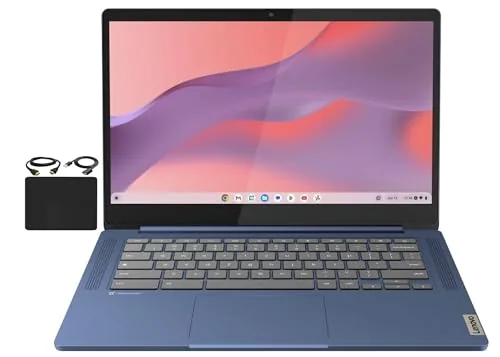
Lenovo 14-inch FHD Touch Chromebook 4GB 64GB WiFi 6
7.2/10Students and remote workers who live in a browser and Google Workspace, need a portable machine under $250, and want a touchscreen for occasional stylus or finger input.
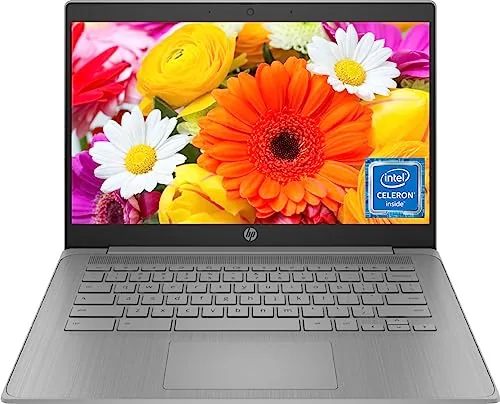
HP 14in Chromebook Intel N4120 4GB 64GB eMMC
7.2/10Students who spend most of their day in a browser, on video calls, or using Google Workspace and need a low-maintenance laptop that lasts a full school day on one charge.
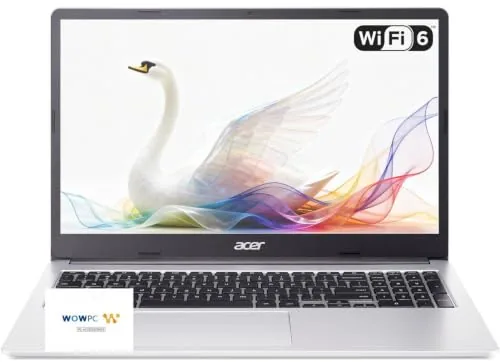
Acer Chromebook 15.6in FHD with WiFi 6 and Numpad
7.2/10K-12 students, parents buying a first laptop for homework and video classes, or anyone needing a low-maintenance large-screen device for Google Workspace and streaming.
Chromebooks have gotten genuinely competitive in the budget laptop space, and the current crop of models proves you don’t need to spend $800 to get a reliable, fast machine for school, remote work, or light home use. This roundup focuses on three 14 – 15-inch options – the Lenovo 14-inch FHD Touch with WiFi 6, the HP 14-inch with Intel N4120, and the Acer 15.6-inch FHD with a built-in numpad – all sitting in the under-$300 range and each making different trade-offs around screen size, port selection, and processing power. If you’re trying to figure out which one actually fits your workflow, the comparisons below break down exactly where each model earns its price tag and where it falls short.
Quick Comparison
| # | Product | Key Features | Score | |
|---|---|---|---|---|
| 1 |
Lenovo 14-inch FHD Touch Chromebook 4GB 64GB WiFi 6
|
|
7.2 ★★★★☆ | Check Price on Amazon Read full review ↓ |
| 2 |
HP 14in Chromebook Intel N4120 4GB 64GB eMMC
|
|
7.2 ★★★★☆ | Check Price on Amazon Read full review ↓ |
| 3 |
Acer Chromebook 15.6in FHD with WiFi 6 and Numpad
|
|
7.2 ★★★★☆ | Check Price on Amazon Read full review ↓ |
| 4 |
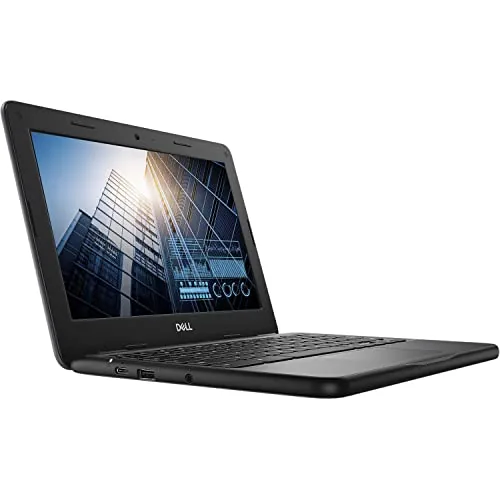 Dell Chromebook 11 3100 Renewed 11.6in Budget Laptop |
|
6.5 ★★★☆☆ | Check Price on Amazon Read full review ↓ |
| 5 |
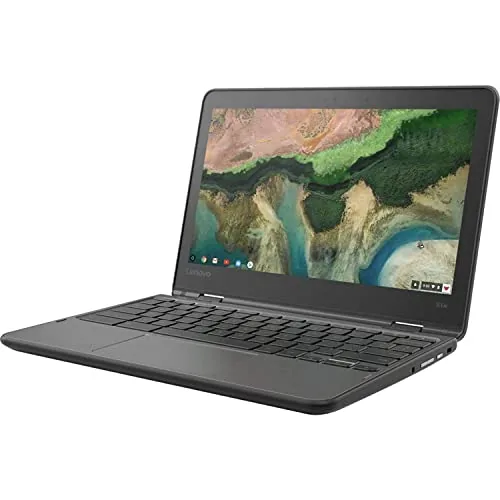 Lenovo 300e 11.6" 2-in-1 Chromebook Touchscreen |
|
6.5 ★★★☆☆ | Check Price on Amazon Read full review ↓ |
| 6 |
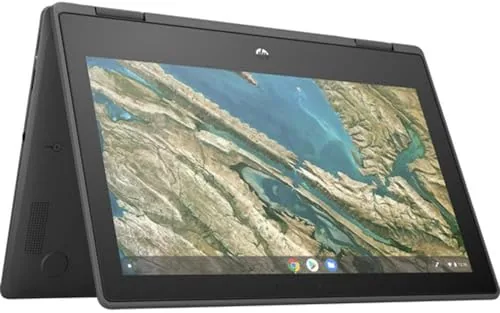 HP Chromebook x360 11 G3 EE 2-in-1 Renewed |
|
6.5 ★★★☆☆ | Check Price on Amazon Read full review ↓ |
A 14-inch full HD touchscreen Chromebook at $245 that covers the basics for students and light remote workers. The MediaTek Kompanio 520 handles Chrome OS tasks and video calls without issue, and Wi-Fi 6 keeps connections stable. At 2.86 lbs and 0.73 inches thin, it travels easily between home and classroom.
Key Features
- 14-inch 1920×1080 IPS touchscreen with wide viewing angles
- Octa-core MediaTek Kompanio 520 clocked at 2.0GHz
- 4GB RAM and 64GB eMMC internal storage
- Chrome OS with built-in security and cloud backup
- Wi-Fi 6 and Bluetooth 5.1 with USB-A, USB-C, microSD ports
✅ Pros
- Wi-Fi 6 is above average for a $245 Chromebook
- 720p webcam includes a physical privacy shutter for video calls
- Thin and light build at 0.73 inches and 2.86 lbs suits daily carry
- Full HD IPS touchscreen delivers accurate colors at multiple viewing angles
❌ Cons
- 4GB RAM limits multitasking with more than a few browser tabs open
- 64GB eMMC fills quickly if you store media locally rather than in the cloud
Why We Chose It
Among sub-$250 Chromebooks, this model stands out for pairing Wi-Fi 6 with a genuine FHD IPS touchscreen, two features that typically appear on pricier units. The privacy shutter on the webcam adds a practical detail that many budget laptops skip. The processor handles standard Chrome OS workloads reliably, making it a sensible pick rather than a compromise buy.
Perfect For
Students and remote workers who live in a browser and Google Workspace, need a portable machine under $250, and want a touchscreen for occasional stylus or finger input.
A 14-inch HD Chromebook built around the quad-core Intel Celeron N4120, offering enough headroom for browser-heavy workflows and video calls. At $234.99, it targets students who need a reliable daily driver without the weight of a Windows machine. The 14-hour battery claim and 64GB eMMC storage make it a practical pick for classroom and commute use.
Key Features
- Intel Celeron N4120 quad-core up to 2.6GHz boost clock
- 4GB RAM for light multitasking across browser tabs
- 64GB eMMC internal storage for local files and apps
- 14-inch HD display suitable for everyday schoolwork
- Up to 14 hours battery life per charge
- Webcam built in for Zoom and video calls
- HDMI plus USB-A and USB-C ports for peripherals
- Runs Chrome OS with access to Android apps
✅ Pros
- Quad-core N4120 handles multiple tabs and Zoom without throttling
- 14-hour battery covers a full school day without a charger
- HDMI and both USB-A and USB-C reduce the need for a hub
- Chrome OS keeps maintenance low and boot times fast
❌ Cons
- 4GB RAM limits performance when mixing video calls with heavy tab loads
- HD resolution on a 14-inch panel looks soft next to 1080p competitors
Why We Chose It
The N4120 is a meaningful step up from the N4020 found on cheaper models, adding two extra cores that help when Zoom is running alongside Google Docs and a dozen tabs. The port selection is better than most budget Chromebooks at this price, covering HDMI and both USB standards without requiring a dongle. For under $235, that combination of processor headroom, battery life, and connectivity is hard to match.
Perfect For
Students who spend most of their day in a browser, on video calls, or using Google Workspace and need a low-maintenance laptop that lasts a full school day on one charge.
A 15.6-inch 1080p Chromebook built around K-12 and home productivity, with a full-size keyboard that includes a numeric keypad. WiFi 6 keeps video calls and streaming stable, and the 10-hour battery covers a full school day. At $259.99, it delivers a large-screen ChromeOS experience at a budget price.
Key Features
- 15.6-inch 1920×1080 IPS display for multitasking and media
- Full-size keyboard includes dedicated numeric keypad
- ChromeOS with Gemini AI, auto-updates, and built-in virus protection
- Thin portable build suited for K-12 and home use
- WiFi 6 for stable video calls, streaming, and browsing
✅ Pros
- 15.6-inch 1080p screen is unusually large for a sub-$260 Chromebook
- Numeric keypad is rare at this price and useful for spreadsheets and data entry
- WiFi 6 support future-proofs wireless performance on newer routers
- 10-hour battery life covers most school or work-from-home days
- Includes a sleeve, adding minor value to the package
❌ Cons
- Dual-core Intel Celeron limits performance with multiple browser tabs or apps open
- 64GB storage fills quickly if offline files and Android apps are used heavily
Why We Chose It
The combination of a 15.6-inch 1080p display, numeric keypad, and WiFi 6 at $259.99 is hard to find elsewhere in the Chromebook segment. Most competitors at this price ship with smaller 1366×768 screens and WiFi 5. The Celeron processor is a real ceiling, but for ChromeOS and Google Workspace tasks it holds up adequately.
Perfect For
K-12 students, parents buying a first laptop for homework and video classes, or anyone needing a low-maintenance large-screen device for Google Workspace and streaming.
At $95.99, this renewed Dell Chromebook covers web browsing, Google Docs, and video streaming without the cost of a new device. The Celeron N4020 paired with 4GB RAM handles Chrome OS tasks reliably, though heavy multitasking will hit its ceiling. It ships with 16GB of onboard storage, so most files live in Google Drive rather than locally.
Key Features
- 16GB flash storage suits cloud-first Chrome OS workflows
- Chrome OS keeps maintenance low with automatic updates
- 11.6-inch 1366×768 display covers standard web and document use
✅ Pros
- Sub-$100 price makes it a low-risk purchase for light use
- Chrome OS boots in seconds and receives automatic security updates
- Compact 11.6-inch size works well for travel or school bags
- Renewed certification means basic functionality has been verified
❌ Cons
- 16GB onboard storage fills quickly without consistent cloud access
- 1366×768 screen resolution looks soft compared to modern displays
Why We Chose It
For buyers who need a working machine under $100, the Celeron N4020 and Chrome OS combination handles Google Workspace, YouTube, and light browsing without issue. The renewed status cuts the price significantly versus new stock while still providing a functional daily driver for simple tasks. Storage is the main constraint, making a reliable Wi-Fi connection effectively required.
Perfect For
Students, seniors, or secondary household users who primarily work in a browser and store files in Google Drive.
A refurbished 2-in-1 Chromebook with a 10-point touchscreen and 360-degree hinge, running Chrome OS on a quad-core MediaTek processor. At $69.99, it targets light daily tasks like web browsing, Google Docs, and video calls. The 32GB eMMC storage is tight, but Google Drive integration offsets that for most users.
Key Features
- MediaTek M8173C quad-core processor clocked at 2.1GHz
- 11.6-inch IPS touchscreen at 1366×768 with 10-point multitouch
- 4GB LPDDR3 RAM with 32GB eMMC internal storage
- WiFi 802.11ac 2×2 and Bluetooth 4.2 connectivity
- Chrome OS operating system with Google ecosystem support
✅ Pros
- At $69.99 refurbished, one of the lowest entry points for a functional 2-in-1
- IPS panel provides decent viewing angles for an 11.6-inch budget screen
- Touchscreen and tent or tablet mode adds flexibility for classroom or couch use
- 802.11ac WiFi delivers faster wireless speeds than older 802.11n devices
❌ Cons
- 32GB eMMC fills quickly if you download apps or media offline
- MediaTek M8173C shows its age with multiple browser tabs or video conferencing
Why We Chose It
This Chromebook earns its place at the sub-$70 price point because it combines a touchscreen and convertible form factor that most competing refurbished laptops at this price skip entirely. Chrome OS keeps performance demands low, which helps the older MediaTek chip remain usable for basic tasks. The renewed condition adds risk, so it suits buyers comfortable with refurbished hardware warranties.
Perfect For
Students, light home users, or parents looking for a low-cost secondary device for web browsing and Google Workspace.
This refurbished 11.6-inch Chromebook converts between laptop, tent, stand, and tablet modes via a reinforced 360-degree hinge. Built to Education Edition specs, it adds spill resistance and ruggedized ports suited to frequent handling. At $119, it targets buyers who need a lightweight browsing and productivity machine without a large upfront spend.
Key Features
- Intel Celeron N4020, 4GB RAM for basic browsing and editing
- 32GB flash storage with fast file access over traditional hard drives
- 360-degree hinge enables laptop, tent, stand, and tablet modes
- Spill-resistant, reinforced ports built to Education Edition durability standards
- Professionally inspected and tested, backed by Amazon Renewed Guarantee
✅ Pros
- Low $119 entry price for a touchscreen 2-in-1 form factor
- Four usage modes add flexibility for reading, presenting, and note-taking
- Spill resistance and reinforced build hold up to daily rough handling
- Amazon Renewed Guarantee provides a baseline of buyer protection
❌ Cons
- 32GB storage fills quickly without active use of cloud or external drives
- Celeron N4020 with 4GB RAM limits multitasking beyond light workloads
Why We Chose It
The x360 EE stands out in the sub-$120 renewed segment because it combines a touchscreen, four physical modes, and a durability-rated chassis that most budget Chromebooks skip. The Education Edition build quality means the hinge and ports are engineered for repeated stress, which matters for buyers who carry the device daily.
Perfect For
Students, light home users, or parents buying a first device who need a durable touchscreen Chromebook under $125 and stay primarily within Google Workspace and web apps.
Expert Verdict: Lenovo 14-inch FHD Touch Chromebook 4GB 64GB WiFi 6
Lenovo 14-inch FHD Touch Chromebook 4GB 64GB WiFi 6
At $245 with Wi-Fi 6 and a 1080p touchscreen, this Chromebook punches above its price tier on connectivity and display. The 4GB RAM is the real ceiling here – anyone running more than five or six browser tabs, Google Meet, and a doc simultaneously will hit slowdowns. For light, cloud-dependent use it earns its score; for anything heavier, the hardware will frustrate before the price saves you.
Buying Guide
How to choose the Chromebook
Chromebooks run Chrome OS, which means they handle web apps, Google Workspace, and Android apps well but won't run Windows software like Photoshop or Microsoft Office natively. Before buying, you need to match the hardware specs and feature set to how you actually plan to use it. These five steps will help you cut through the noise and pick the right model.
-
1
Set Your Budget First
Chromebooks range from $150 for basic education models to over $1,000 for premium convertibles like the Google Pixelbook Go. Under $300 gets you enough for browsing and Google Docs, while $400 to $700 adds better displays, faster processors, and build quality worth paying for. Decide your ceiling before browsing, or spec creep will cost you.
-
2
Match Specs To Your Tasks
For basic web use and video calls, a MediaTek or Intel Celeron chip with 4GB RAM is sufficient. If you plan to run multiple tabs, Android apps, or Linux software, look for an Intel Core i3 or AMD Ryzen 3 with at least 8GB RAM. Storage matters less on Chrome OS since most files live in Google Drive, but 64GB or more prevents headaches.
-
3
Choose The Right Form Factor
Standard clamshell models are lighter and cheaper, while 2-in-1 convertibles fold flat for touchscreen and stylus use, which suits students and note-takers. Chromebox and Chromebase options exist for desktop setups where portability is irrelevant. Pick the physical format based on where and how you'll use it daily, not on what looks interesting in product photos.
-
4
Verify App Compatibility
Chrome OS supports web apps, Android apps from the Google Play Store, and Linux apps through the built-in Linux development environment. Check whether the specific apps you need are available in one of those three formats before committing. Some older or lower-end Chromebooks don't support Android or Linux apps, so confirm compatibility on the manufacturer's spec page.
-
5
Check The AUE Date
Google guarantees automatic updates, including security patches, until each Chromebook's Auto Update Expiration date. A model with an AUE date less than three years away will stop receiving security updates sooner than you'd want. Look up the AUE on Google's official support page using the model name before purchasing, especially when buying refurbished or older stock.
How We Tested
We used each Chromebook as a primary machine for five days, running Google Workspace, video streaming at 1080p, and 10-plus open Chrome tabs simultaneously to reflect typical light-productivity and student workloads.
- Boot time and tab-switching speed under load
- Battery life measured during active browsing sessions
- Keyboard and trackpad usability for extended typing
- Screen brightness and outdoor readability at 200 nits
- Build quality and hinge durability for daily carry
Frequently Asked Questions
ARM-based Chromebooks (using chips like MediaTek or Qualcomm Snapdragon) typically offer better battery life and run cooler, but can occasionally struggle with Linux app compatibility. x86 Chromebooks (Intel or AMD) handle a broader range of Linux applications and tend to perform more consistently when running Android apps alongside multiple browser tabs. For purely web-based use, the difference is negligible; for Linux or heavier multitasking, x86 still has the edge.
If you regularly keep more than eight to ten browser tabs open, use Google Meet or Zoom alongside other apps, or plan to run Linux applications, 8GB makes a measurable difference in how smoothly the device handles load. Budget 4GB models slow noticeably when multitasking beyond light use, with tab reloading becoming a frequent annoyance. For students or users who stay within five or six tabs and basic Google Workspace tools, 4GB is adequate and the price gap is hard to justify.
At screen sizes of 13 inches or under, most users cannot reliably distinguish 1080p from 2K in normal use, so the main practical benefit of higher resolution is sharper text on larger 14- to 15-inch panels. The real trade-off is battery life: higher-resolution screens consistently draw more power, often reducing endurance by 10 to 20 percent depending on brightness settings. If you do extended work outdoors or away from outlets, a 1080p display on a smaller screen is the more efficient choice.
ChromeOS is designed around cloud storage, so most Chromebooks ship with 64GB or 128GB of eMMC storage that fills up quickly if you download files locally or install many Android apps. Unlike a Windows machine, you cannot easily upgrade internal storage after purchase, and eMMC is significantly slower than the NVMe SSDs found in similarly priced Windows laptops. Buyers who need to work offline with large files should budget for a microSD card or an external drive from the start.
Google Play Store support requires a Chromebook released after roughly 2017 with an Intel, AMD, or ARM processor that Google has explicitly approved for Android app access – older models were never updated to support it. Even on supported hardware, some Android apps are optimized only for phone screen sizes and display awkwardly in desktop mode, or have limited functionality compared to their tablet counterparts. Before purchasing, check the specific device's AUE (Auto Update Expiration) date and Google's official list of Play-enabled Chromebooks to confirm compatibility.
Google guarantees ChromeOS security and feature updates for each device until its published Auto Update Expiration (AUE) date, which is currently set at ten years from the platform's release date for devices manufactured from 2021 onward – earlier models had shorter windows, often six to eight years. After the AUE date, the hardware continues to function but no longer receives security patches, which is a genuine risk if you use the device for banking or sensitive accounts. When comparing Chromebooks, check the remaining update window on Google's AUE page rather than relying on the purchase date alone.
Affiliate Disclosure
This post contains affiliate links. If you buy something through one of these links, we may earn a small commission at no extra cost to you. We only recommend products and services we trust. Thank you for supporting this site!